 10,000+ reviews
 Europe's online specialist for lamps
 Return within 30 days
Checkout using your account
Checkout as a new customer
Creating an account has many benefits:
- See order and shipping status
- Track order history
- Check out faster
How to pair a Wiz light
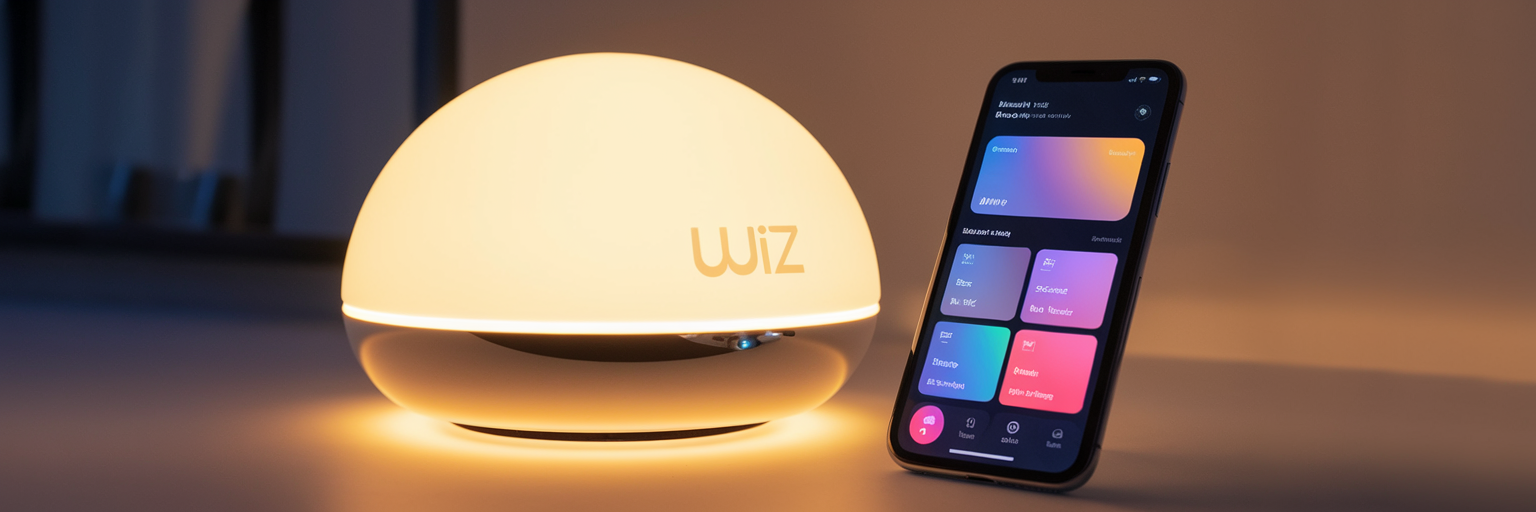
WiZ lamps are smart Wi-Fi lights that you can easily control via your smartphone or voice assistant. They work without a hub and connect directly to your Wi-Fi network. In this guide, we’ll show you step-by-step how to pair your WiZ lamp with the WiZ app for quick and easy setup.
What you’ll need
- A WiZ-compatible smart lamp (e.g. E27, GU10, or ceiling light)
- A stable 2.4 GHz Wi-Fi connection
- A smartphone with the WiZ app installed
Step-by-step installation guide
1. Screw the lamp into the fitting
Place the WiZ lamp into a suitable fixture and switch on the power. After a few seconds, the lamp will start blinking – this means it’s in pairing mode.
2. Download and open the WiZ app
Go to the App Store (iOS) or Google Play Store (Android) and download the WiZ app. Open the app once it’s installed.
3. Create an account or log in
When opening the app for the first time, you’ll be asked to create an account or log in. Follow the on-screen instructions.
4. Create a room
Before adding a lamp, create a “room” in the app, such as “Living Room” or “Bedroom.” The app will guide you through this process automatically.
5. Add a lamp
Tap on “Add Device” or the plus icon in the top right corner. Select “WiZ lamp” and follow the instructions. The app will prompt you to connect the lamp to your Wi-Fi network.
6. Connect to Wi-Fi
Enter the password for your 2.4 GHz Wi-Fi network. The lamp will connect automatically – this process may take a few seconds.
7. Let the app search and pair the lamp
Ensure the lamp is still blinking. The app will automatically search for it. Once found, you can add it to your chosen room.
8. Name your lamp
You can now give the lamp a name, such as “Desk Lamp” or “Dining Light,” making it easier to recognise or control via voice commands.
9. Control your lamp
Once paired, you can switch the lamp on or off, dim it, change colours (on RGB models), set timers, or create automations directly from the app.
Need help?
- Lamp not blinking: Turn the lamp off and on quickly 3 times to re-enter pairing mode.
- No Wi-Fi connection: Make sure you’re connected to a 2.4 GHz network, not 5 GHz.
- App can’t find lamp: Restart the lamp or the app and try again.
Ready to use
Your WiZ lamp is now successfully paired. From now on, you can control it via the app, use it with a voice assistant, or set up automations for a fully smart lighting experience.